
Introduction
How To Combine Photos On iPhone is a valuable technique for creating collages, comparisons, or stitched screenshots from your device. This guide explains how to combine photos on iPhone using built-in tools like the Shortcuts app, which helps merge pictures vertically or horizontally, and the Markup tool for overlaying images.
It also introduced popular apps like Layout, which are available through Instagram, Canva, and Stitch It. These apps offer drag-and-drop grids, stylish templates, and automatic screenshot stitching. Whether designing social media posts, organizing chat screenshots, or being creative, this article shows simple ways to combine photos without needing professional skills.
| Method | Purpose | Key Steps/Features |
| Shortcuts App | Combine images quickly | Pre-installed, vertical/horizontal merge, auto-save |
| Open Shortcuts → Select Photos → Combine → Save | ||
| Markup Tool | Overlay one photo on another | Fast edits using built-in tools |
| Photos → Edit → Markup → Add Photo → Adjust → Done | ||
| Layout by Instagram | Stylish grid-based collages | Drag and drop, flip, mirror |
| Select photos → Choose grid → Customize → Save | ||
| Canva | Design-focused photo combinations | Add text, stickers, templates |
| Start project → Upload photos → Design → Export | ||
| Tailor or Stitch It | Merge screenshots automatically | Best for chats, webpages |
| App auto-aligns → Vertical stitch → Save result. | ||
| Other Collage Apps | More layout and edit options | Free, creative templates |
| Use PhotoGrid, Pic Stitch, Fotor, Moldiv, etc. |
How To Combine Photos On iPhone?
Combining photos on iPhone is useful for creating collages, comparing images, or telling a visual story. Whether you want a quick side-by-side photo or a whole collage, iPhones offer built-in tools and third-party apps to get it done. You don’t need to be tech-savvy. Just follow some simple steps to assemble your pictures creatively and neatly using your iPhone.
Use the Shortcuts App (Built-in Option)
The Shortcuts app lets iPhone users combine images without needing extra apps. It’s pre-installed and easily automates many tasks, including merging photos. This method is fast and gives a clean result. It is best used for basic vertical or horizontal image combinations. If you’re wondering how to combine photos on iPhone without downloading anything, this is one of the best ways.
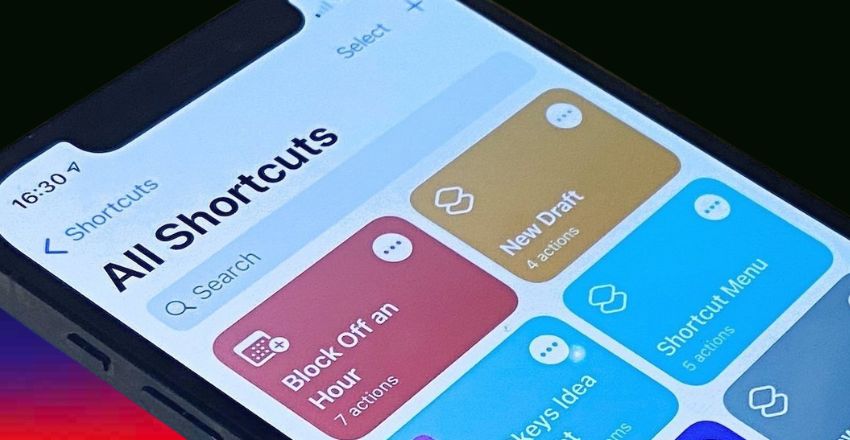
Steps
- Open the Shortcuts app
- Tap “+” to create a new shortcut
- Add “Select Photos” (enable multiple)
- Add the “Combine Images” action
- Choose a layout (vertical or horizontal)
- Add “Save to Photo Album”
- Run the shortcut to combine and save
Use Markup Tool for Quick Overlay
If you only want to place one image over another, the Markup tool inside the Photos app works great. It’s simple and effective for adding one photo on top of another, like a sticker. This method is good if you’re doing quick edits and don’t need fancy layouts. It helps you understand another way of how to combine photos on iPhone using a tool you already have.
Steps
- Open the Photos app and choose a picture
- Tap Edit > three dots > Markup
- Tap the “+” icon, then Add Photo
- Select your second image
- Resize, move or rotate as needed
- Tap Done to save it
Try the Layout App on Instagram
Layout by Instagram is a free and easy-to-use app built to make collages. It’s perfect for combining 2 to 9 photos using different grid styles. You can flip, rotate, and mirror images too. If you’re looking for a stylish answer to combining pictures on iPhone, this app is a top choice for Instagram users and anyone who wants to make visually appealing photo sets.
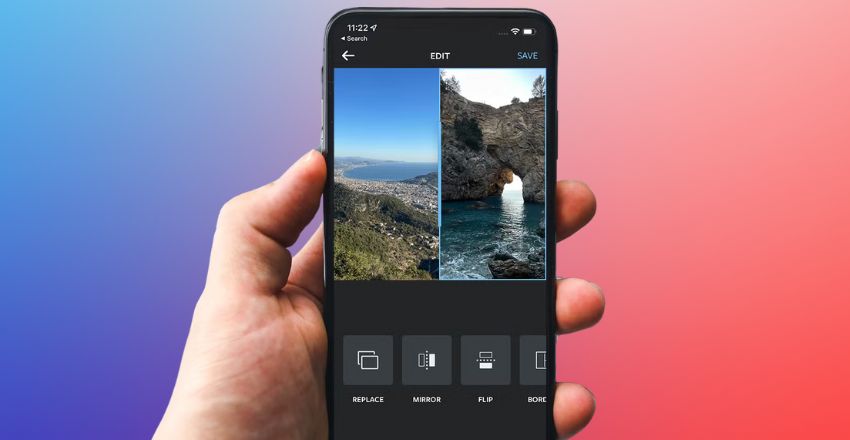
Features
- Free and user-friendly
- Choose from grid formats
- Rearrange photos with drag-and-drop
- Flip or mirror photos
- Export directly to social media
Use Canva for Creative Designs
Canva is more than just a collage app. It’s a complete design tool that combines images and adds text, colors, icons, and more. If you’re making social media graphics, event invites, or posters, Canva is a great option. It offers plenty of flexibility and design freedom for anyone searching for advanced ways to combine photos on iPhone with style and creativity.
Steps
- Open Canva and start a blank design
- Upload your photos
- Drag and drop images into place
- Add text, stickers, or filters
- Save or export your final image
Screenshot Stitching: Use Tailor or Stitch It
For those who often capture multiple screenshots, like chat conversations or full-page web content, apps like Tailor or Stitch It are made for this. They automatically detect overlaps and stitch screenshots vertically. These are ideal if you’re a student, researcher, or blogger looking for specific solutions for how to combine photos on iPhone when it comes to multiple screenshots.
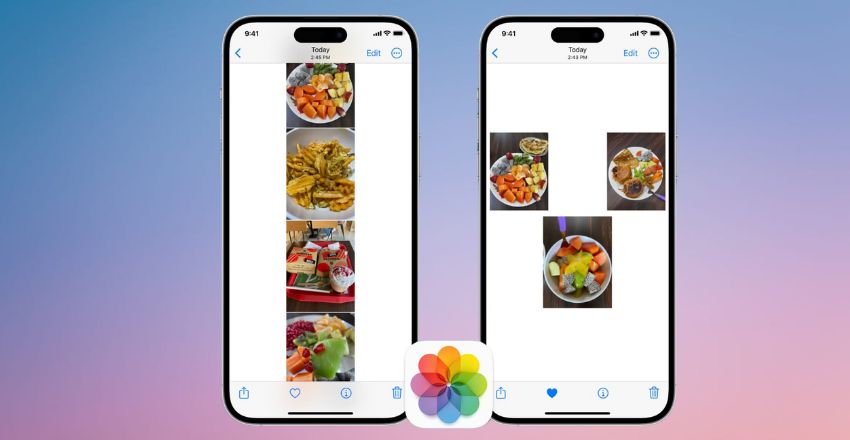
Benefits
- No manual alignment is needed
- Great for chats, documents, or web pages
- Automatically arranges screenshots
- The clean, seamless final image
- Easy export to your Photos app
More Free Collage Apps to Explore
Many free apps on the App Store allow you to experiment with different collage styles and layouts. If you want more options than the basic iPhone tools, these apps give you frames, stickers, filters, and more. They’re fun and simple to use. If you’re still exploring how to combine photos on iPhone, these tools offer variety and creativity at no cost.
Popular Collage Apps
- PhotoGrid – Filters and themed layouts
- Pic Stitch – Grids with editing tools
- Fotor – Filters, frames, and effects
- Collageable – Stylish templates and frames
- Moldiv – Magazine-style photo layouts
Conclusion
In conclusion, understanding how to combine photos on iPhone helps users easily make creative photo collections, comparisons, or visual stories. From built-in tools like the Shortcuts app and Markup to third-party apps like Canva, Layout, or Tailor, there are many simple and free ways to do it. These methods are great for both basic and advanced editing. Anyone can master combining photos on an iPhone without needing design experience or extra tools.
Want to know about ‘Pair Eyewear Review: A Customizable Vision Solution, Frame, Quality, Price‘? Check out our ‘Tech‘ category.
FAQs
The simplest way to learn how to combine photos on an iPhone is using the built-in Shortcuts app. It lets you quickly merge pictures side by side or top to bottom without downloading any extra apps.
You can overlay images using the Markup tool in the Photos app. It allows you to add one picture on top of another, helping you explore how to combine photos on your iPhone in a creative way.
Apps like Layout, Canva, and PhotoGrid let you create stylish photo collages for free. They’re perfect for anyone looking to try different ways to combine photos on an iPhone using templates and tools.